
East Central BOCES has a Media Center where you can browse our resources and checkout items for your school/classroom.
You can access the site at https://media.ecboces.org or directly from the dashboard on the ECBOCES website once logged in
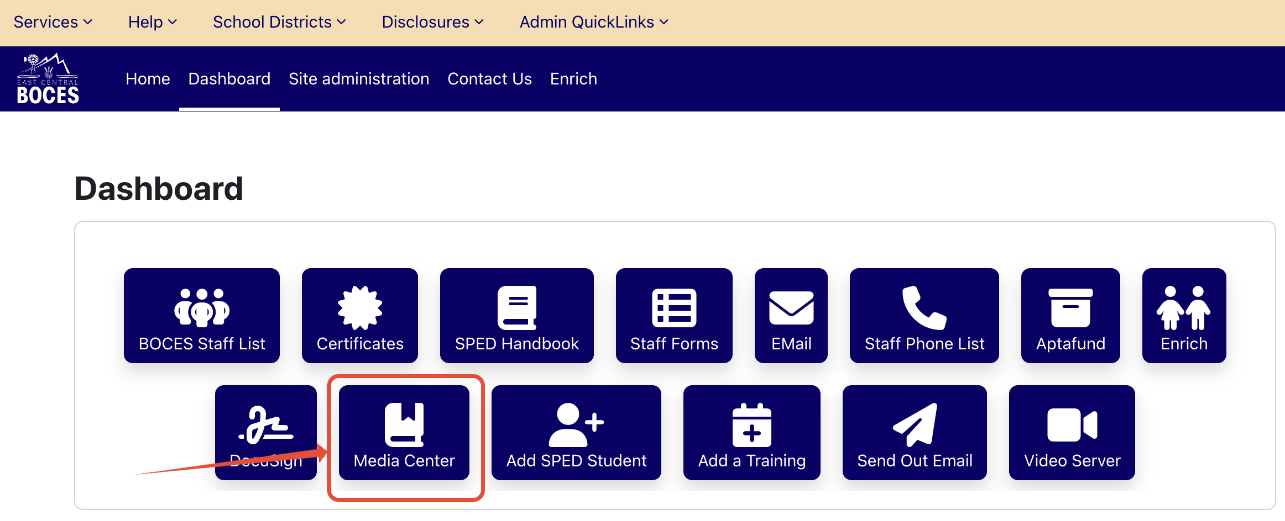
Click on the Media Center link from the ECBOCES website dashboard.
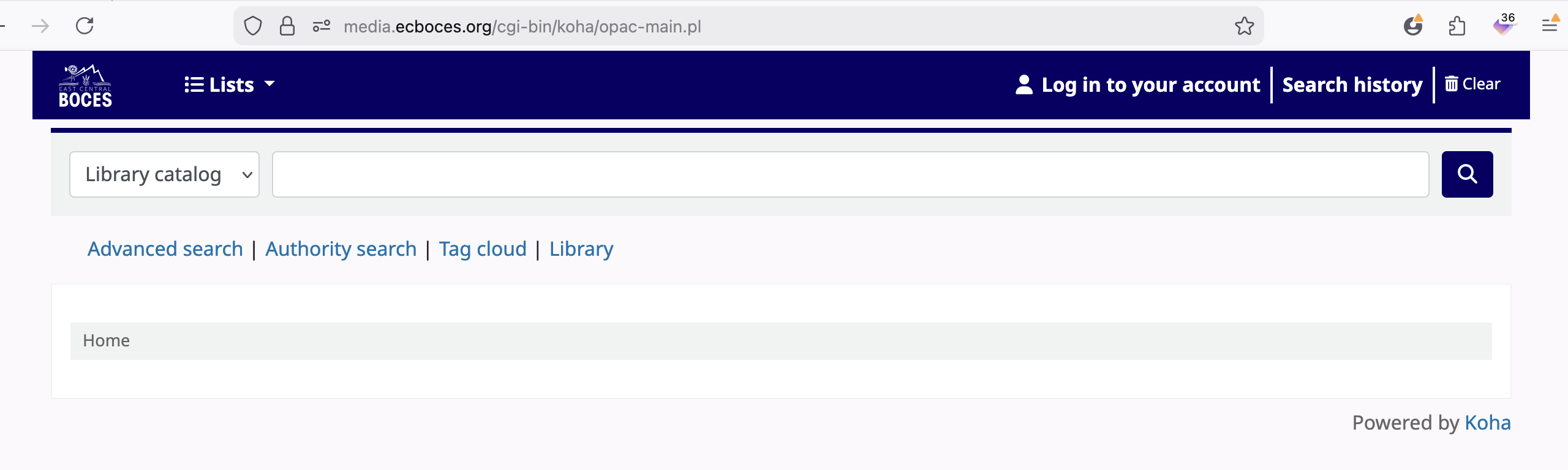
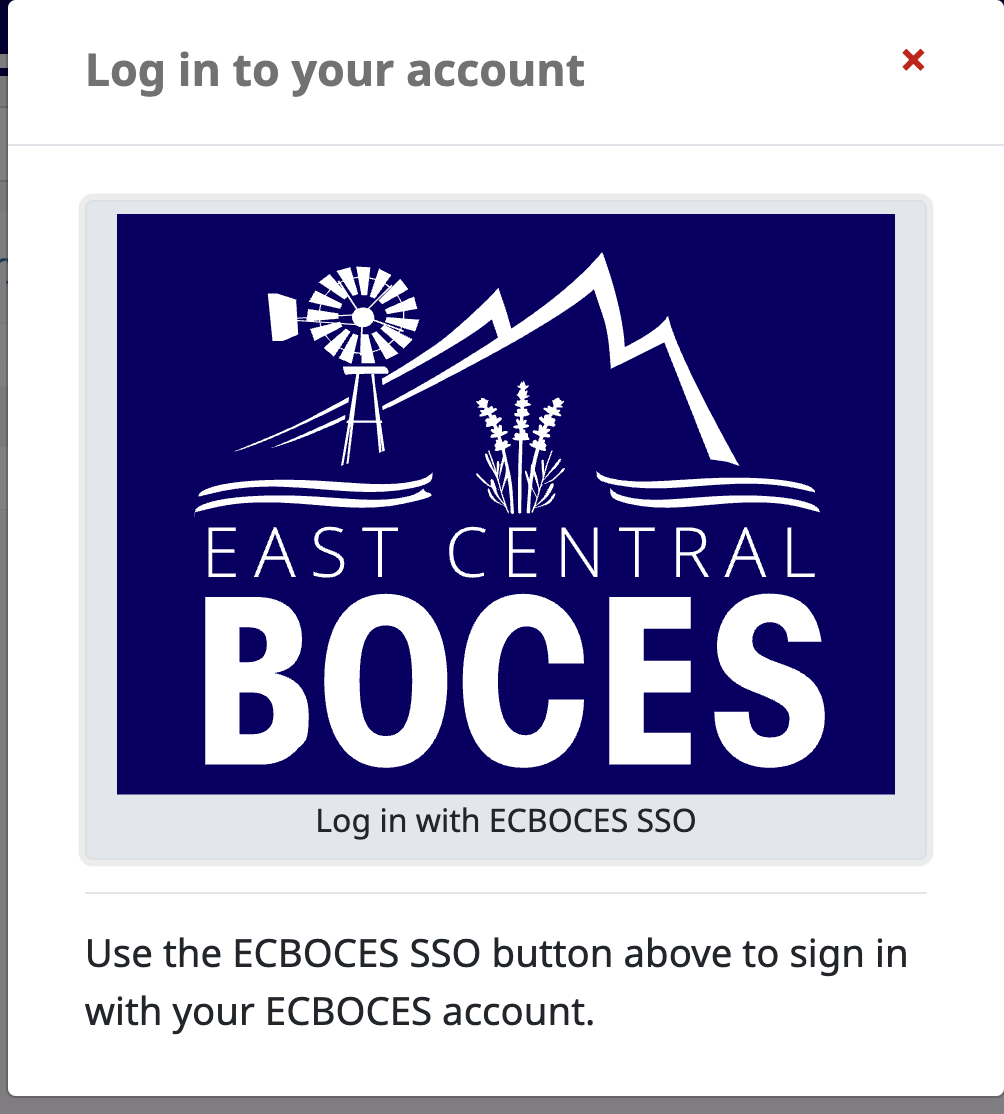
If you go directly to the media.ecboces.org site, click on Log in to your account and then on the Login with ECBOCES link.
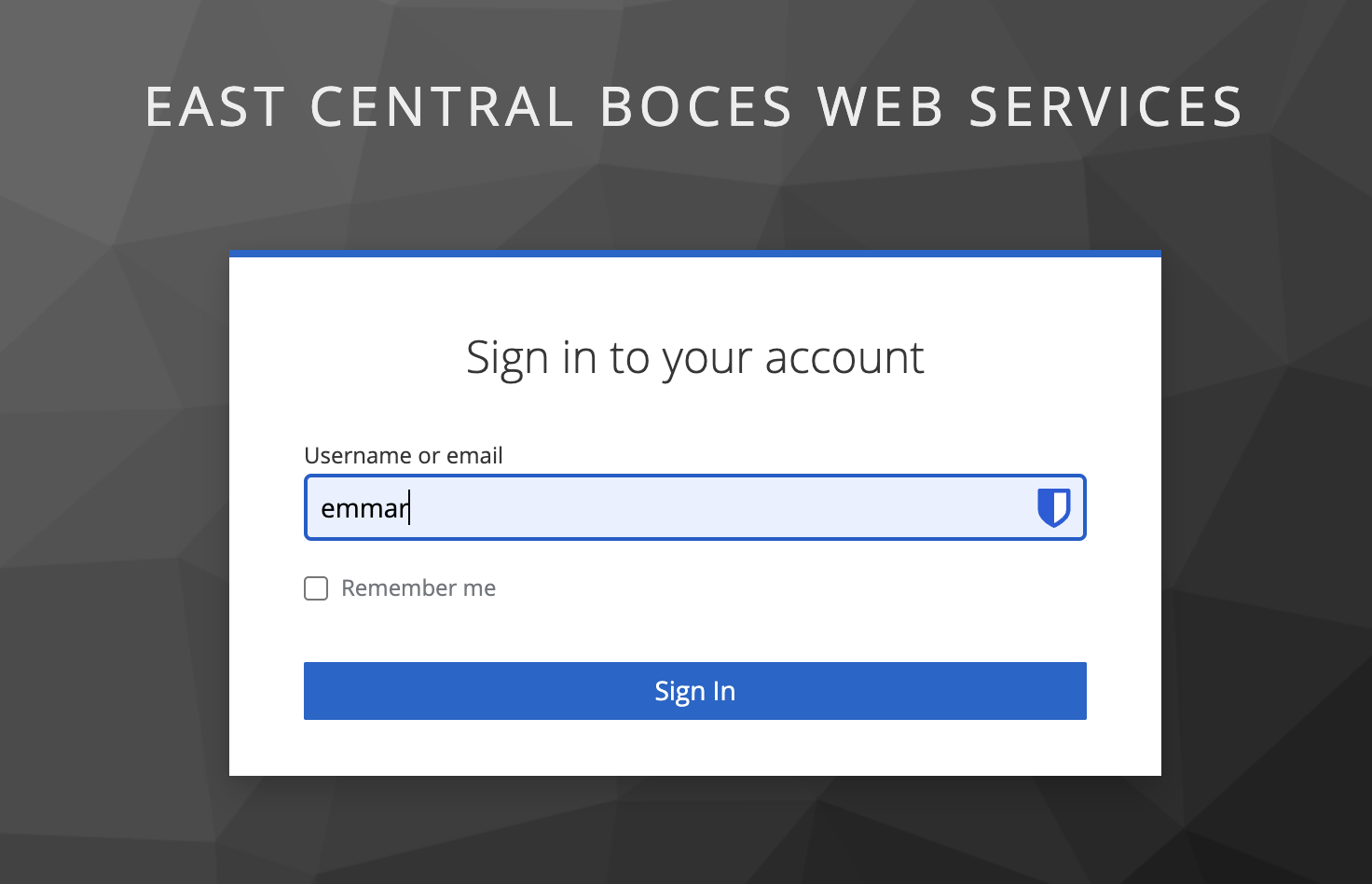
Either route will take you to our ECBOCES SSO Login where you will login with your ECBOCES credentials.
Once you are logged in, you be returned to the Media Center Home page.
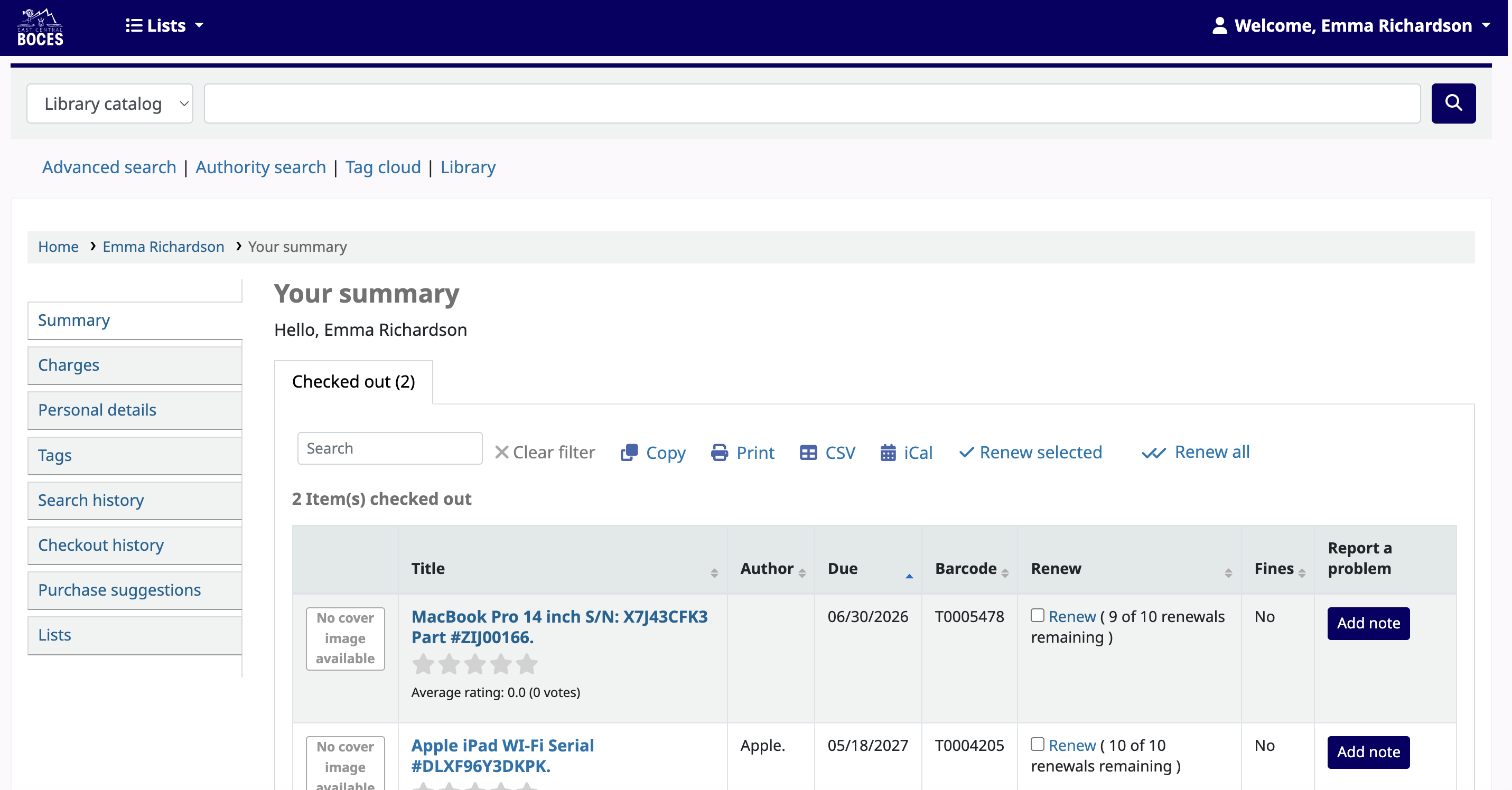
If you have any items checked out that already linked to the email address on your account, you will see them listed on the main page.
To look for items, use the search bar at the top of the page.
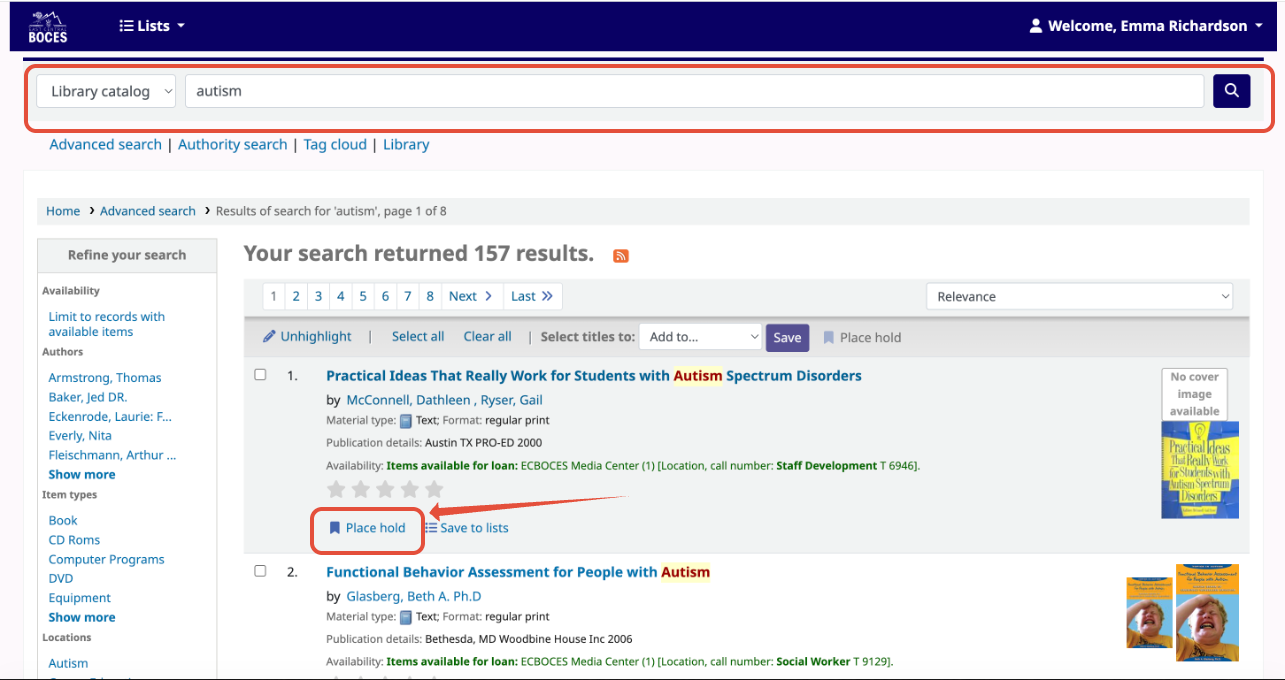
If you find an item that you want to check out, please click on Place Hold.
On the next screen, click on Confirm Hold.
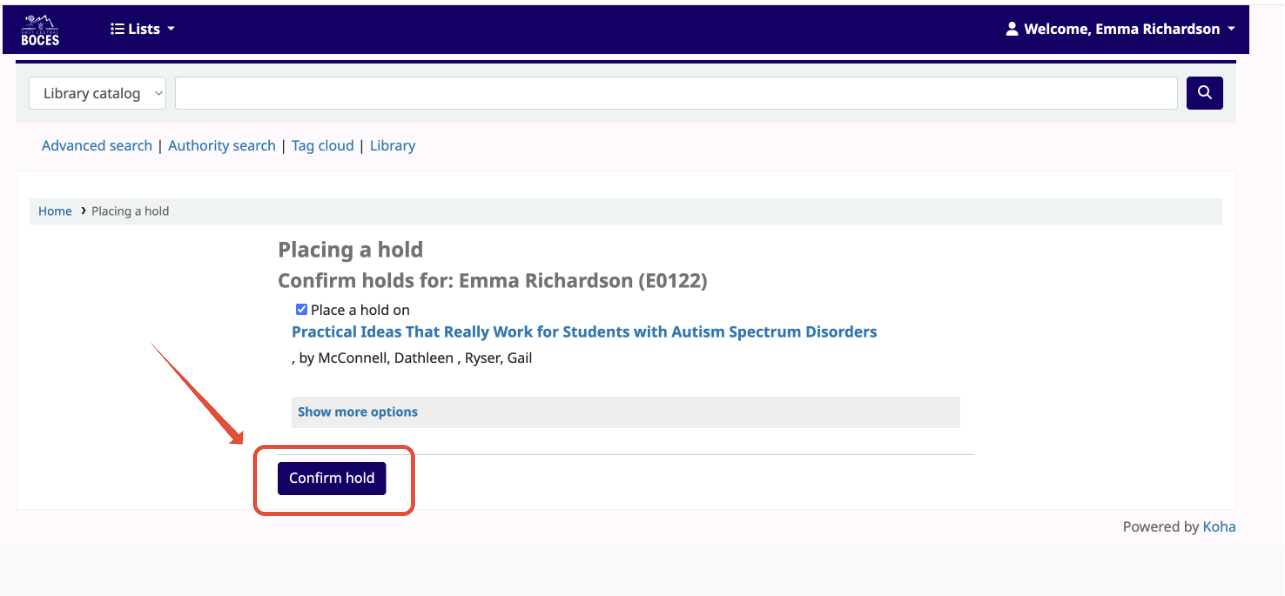
This will send an email to our Media Center and your item will be checked out to you if available. Someone from the Media Center might reach out to you to see where you need it delivered or if you are going to pick it up.
If you have any trouble with the functionality of the Media Center, please submit a help desk ticket to help@ecboces.org. For specific media questions, please reach out to Lisa Winters (lisaw@ecboces.org)